Category: digital instruction

Total 80 Posts

Can Someone Tell Me What I’m Looking At Here?

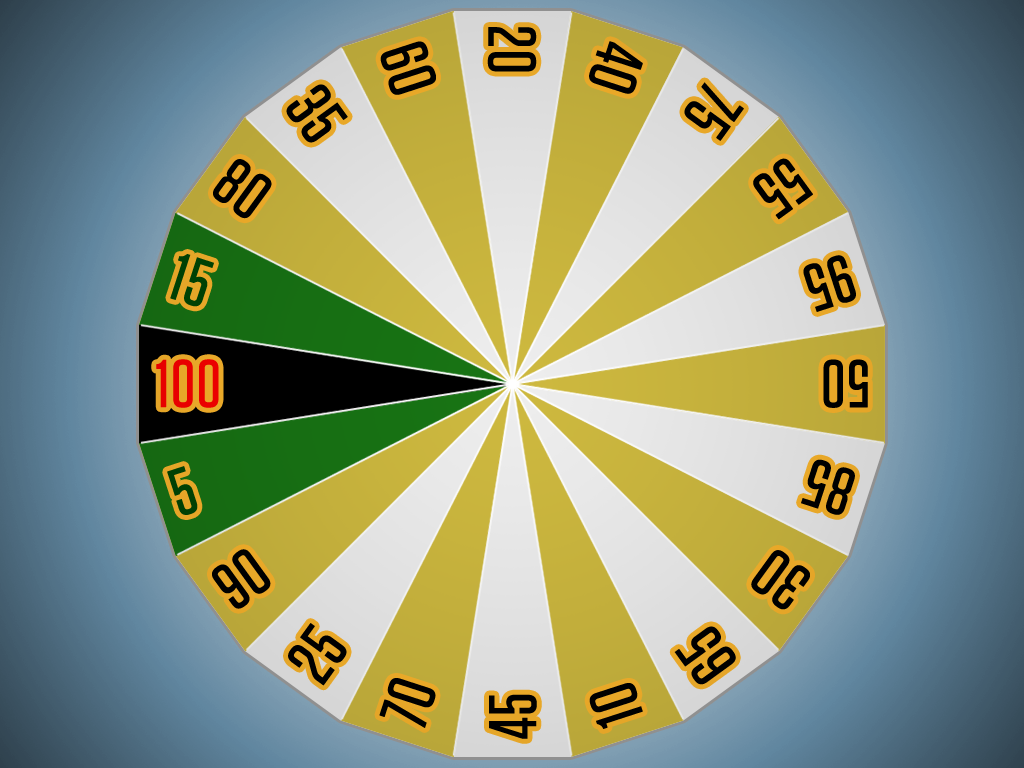
I downloaded a clip of the game show The Price Is Right and analyzed the footage in Excel and AfterEffects.

It probably goes without saying I’m wondering, “Is it predictable?” What model underlies the showcase spinner? If you knew the initial position of the spinner and, say, the amount of time it took the spinner to complete one revolution, how close could you get to predicting its final position?

This one has me outclassed, though. Someone teach me something, okay?

2012 Jan 7: Here is the timecode data I gathered.

2012 Jan 7: And the spinner.

Redesigned: Follow That Diagonal

Which is a better treatment of that problem with the rectangle’s diagonal? How are you defining better? Better for what purpose? Help me out here.

Schoenfeld

From Alan Schoenfeld’s 1994 Math 67 midterm:

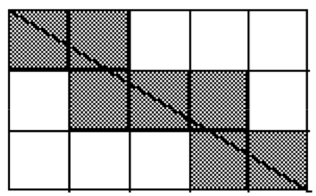
The diagonal of the 3 x 5 rectangle below passes through the interiors of 7 of the 15 squares that comprise it. In general, consider an N x M rectangle. Through how many of the NM squares that comprise the N x M rectangle does the diagonal pass?

Nowak

From Kate Nowak’s blog:

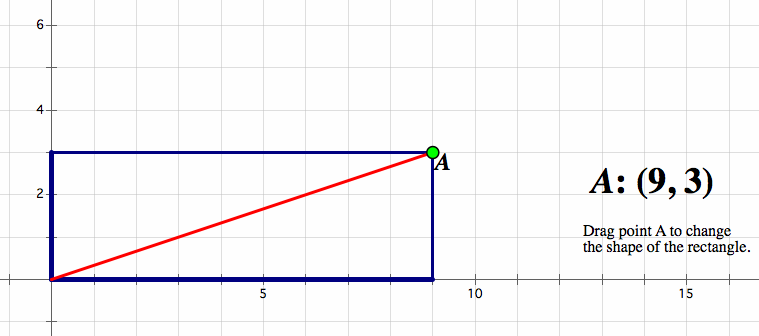
Draw a 9 by 3 rectangle on a square grid. Draw one diagonal. How many squares does the diagonal pass through? Draw some non-similar rectangles with one diagonal. How many squares does the diagonal pass through? Develop a rule to determine the number of squares a diagonal passes through for any rectangle of any size.

Meyer

My own treatment, submitted for review, correction, and debate:

How many squares will the diagonal of the large rectangle cut through? [This question added because it wasn’t clear I’d ask it – dm]

I’ll follow up in the comments at some point on the decisions that went into my redesign.

2011 Dec 1. Check out David Cox’s parallel investigation of this problem, leading to an incredible Geogebra applet.

When Is Video Valuable?

The question that bugs me at all hours is “When is video / photo / print valuable?” This video is one minute long and gets me closer to an answer.

The intermediate value theorem says that because you picked purple when the purple slice was big and blue when the purple slice was small and because slices run continuously from small to big, there is a particular slice that makes you go, “Meh,” that’s exactly in between “I choose purple” and “I choose blue.”

I love that students have an intuition about that slice, an informal understanding of probability that we can develop into something formal. We can access that intuition with video by showing that small slice growing continuously into the big. How do you replicate that experience in print, a medium which does a bang-up job with static quantities but has something of a panic attack when those quantities change?

Featured Comment

Avery Pickford:

Know what Iโ€™d really love. For every student to be able to click their mouse (or some equivalent) when they would make the switch and to have this data show up on my screen right after the video was done.

2011 Nov 29. Evan Weinberg hacked together something that does what Avery described. The results surprised me.

Free Video Timer Hack

When I’m designing digital math tasks, I feel the most ridiculous when I fire up Adobe AfterEffects โ€“ a special-effects juggernaut โ€“ to lay a simple timer over some footage for the second act.

Print Job โ€“ Act Two from Dan Meyer on Vimeo.

Here’s a neat hack if all you have is Keynote or PowerPoint.

  1. Download this video. It’s just a timer that runs to sixty seconds. (Sixty seconds, of course, is the constraint on #anyqs video.)
  2. Drag the video you want to time into Keynote or PowerPoint.
  3. Drag the timer video on top of that video. Resize and reposition it as you like.
  4. Set its animation to start with a click and stop with the next click..

Now when you play your slideshow you just click and the timer starts. Click it again and it stops. One caveat: this timer won’t do you any good if your video is slow or fast. It’s calibrated for 29.97 frames per second, which is what comes off most consumer cameras. Here’s an example of the effect in Keynote:

Timer Tutorial from Dan Meyer on Vimeo.

Drop me a line in the comments if you wind up using this.

BTW: Alternately, you could have your students get their own measurements using their phones for timers. That one’s nice because the answers spread across the measurement error a little bit. Everyone owns a slightly different answer.

BTW: I’ll be traveling over the next three weeks. My intern, Giuseppe, will be posting material for me throughout my absence and I’ll check in with the comments when I’m back.
What’s Wrong With This Picture?

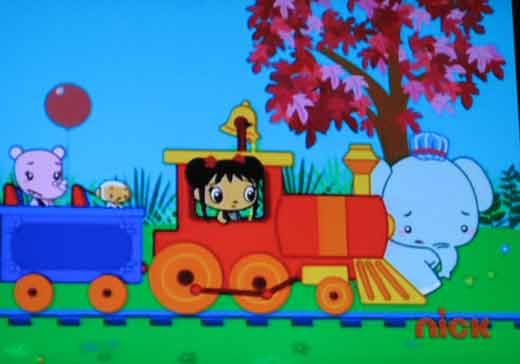
I’m still compiling my notes from a very strange and very cool CMC-North. Until then, consider this graphic, ripped from children’s television by Bill Farren as a visual assessment for engineering students:

I have underrated the assessment question, “what’s wrong here?” I need to do more of that. It isn’t that tricky, though it is tricky to deliver that assessment visually, as Bill has done here. It’s trickier still to rip that visual from a kid’s show, packaging the whole assessment in the sort of scientific put-down of children’s entertainment that appeals directly to the inner misanthrope I keep loosely tethered on a fraying leash.

Comments are closed here. Tell Bill what’s wrong over there.